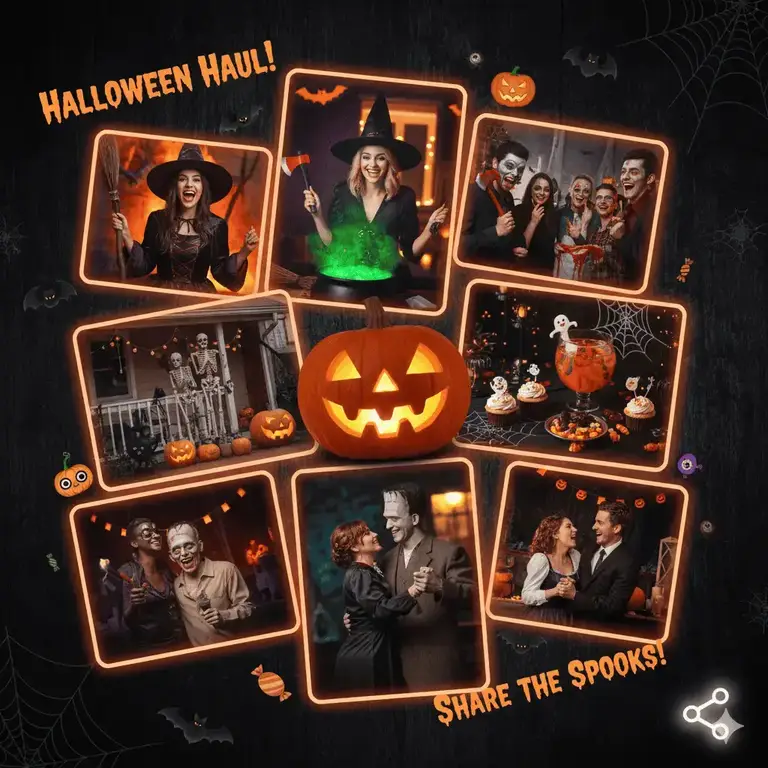
You’ve captured the perfect moments: the kids in their costumes, the intricately carved jack-o’-lanterns, and the spooky decorations around the house. Now, instead of posting them one by one, why not combine them into a stunning collage that tells the whole story of your Halloween?
A single, well-designed collage grabs more attention on a crowded social media feed and allows you to showcase multiple memories at once. The best part? You don’t need to be a graphic designer. This guide will walk you through the easiest ways to create a share-worthy Halloween collage using your phone, computer, or a web browser.
Method 1: The All-in-One Champion – Canva (Web & Mobile)
Best for: Everyone! Especially if you want beautiful designs without starting from scratch.
Platform: Web, iOS, Android
If you only use one tool, make it Canva. It’s incredibly user-friendly and packed with features perfect for this task.
How to do it:
- Create a free account at Canva.com or open the app.
- In the search bar, type “Halloween Collage”. You’ll be greeted with dozens of pre-designed templates. They have spooky, cute, and elegant options.
- Choose a template you love. Simply click on the placeholder photos and upload your own from your computer or phone.
- Customize it! Change the text, add spooky stickers (search “Halloween elements”), or adjust the filter to give it a creepy vibe.
- Download your creation as a PNG or JPEG, and it’s ready to share!
Why we love it: The template library is massive, which saves you tons of time and makes your collage look professional.
Method 2: The Mobile Maestro – PhotoGrid (Mobile)
Best for: Quick, powerful collages directly on your smartphone.
Platform: iOS, Android
When you’re on the go and want to post immediately, PhotoGrid is a top choice. It’s built specifically for making collages and editing photos on mobile.
How to do it:
- Download PhotoGrid from the App Store or Google Play.
- Tap “Collage” and select the Halloween photos from your camera roll.
- Choose a layout. PhotoGrid offers a huge variety of grid patterns and funky shapes.
- Use the tools to adjust borders, add background patterns (like orange and black), and apply Halloween-themed filters.
- Add text or stickers to finish it off, then share directly to Instagram, Facebook, or your favorite app.
Why we love it: It’s fast, intuitive, and has all the essential collage features optimized for a mobile experience.
Method 3: The Classic Powerhouse – Adobe Express (Web & Mobile)
Best for: Those who want a bit more creative control and premium quality.
Platform: Web, iOS, Android
Formerly known as Adobe Spark, Adobe Express brings a touch of professional design power to the everyday user. It’s free to use with optional premium assets.
How to do it:
- Go to express.adobe.com or open the app.
- Start with a blank canvas or search their template gallery for “Halloween Grid” or “Halloween Photo Layout.”
- Upload your photos and drag them into the layout. The Adobe interface is very clean and easy to use.
- Explore the “Quick Actions” to easily remove a background from a photo—perfect for making a ghost costume pop!
- Download your high-quality collage for sharing.
Why we love it: The quality and design flexibility are top-tier, and the background remover is a magical tool for Halloween edits.
Method 4: The Desktop Default – Built-in Operating System Apps
You might already have powerful collage-making software on your computer without knowing it.
For Mac Users: Photos App
The macOS Photos app is more capable than it looks.
- Select the Halloween photos you want in your collage.
- Click File > Create > Photo Stack. This will group them.
- While not a traditional collage, you can then use the “Create Memory” feature with these selected photos, which automatically generates a styled video and graphic layout that is perfect for sharing.
For Windows Users: PhotoPad / Microsoft Designer
While Windows doesn’t have a direct “collage” feature in its default Photos app, here are two great alternatives:
- Microsoft Designer: This is a fantastic and free tool from Microsoft, similar to Canva. Go to designer.microsoft.com, search for a Halloween post template, and add your multiple photos to the design.
- Paint 3D: The modern Paint allows you to easily create a canvas and “stick” multiple photos onto it, giving you full manual control over your collage layout.
Pro-Tips for a Killer Halloween Collage
- Stick to a Theme: Are your photos cute, scary, or funny? Let that theme guide your template, colors, and stickers.
- Choose the Right Layout: Pick a grid that highlights your best photo (usually the center or largest frame).
- Don’t Overcrowd: Leave a little “breathing room.” Too many photos in a small space can look cluttered.
- Add a Caption: Use a fun Halloween pun! “Witching you a happy Halloween!” or “Our little monsters.”
- Share with Relevant Hashtags: Boost your reach with tags like #HalloweenCollage, #SpookySeason, #Halloween2024, #TrickOrTreat, and #HalloweenVibes.
You don’t need a degree in graphic design to create a collage that will get all the likes and loves. Whether you choose the template-rich Canva, the mobile-friendly PhotoGrid, or the powerful Adobe Express, you’re just a few taps away from turning your individual Halloween snaps into a memorable masterpiece. You can also quickly resize your collage using our software.