What Exactly is DPI?
DPI, or Dots Per Inch, is a measurement of printing resolution that indicates how many individual dots of ink a printer can place within a one-inch line. Think of it as the density of information on a printed page – the higher the DPI, the more detail and sharpness your printed image will have.
While often confused with PPI (Pixels Per Inch), which relates to digital screen resolution, DPI specifically refers to the physical printing process. Understanding this distinction is crucial when preparing digital images for print.
From Digital Pixels to Physical Dots: The Complete Transformation
When you capture a photo with a digital camera or create an image on your computer, you’re working with pixels – tiny squares of color information. Printing transforms these digital pixels into physical ink dots on paper. This transformation is where DPI becomes critical.
The Pixel-to-Print Relationship
- A digital image has dimensions measured in pixels (e.g., 3000 × 2400 pixels)
- When printed, those pixels are distributed across physical inches
- The DPI setting determines how many pixels will occupy each inch of paper
The Digital Default: Why You Usually See 72 or 96 DPI
If you’ve ever checked an image’s properties in Windows File Explorer, macOS Finder, or any photo gallery app, you’ve likely noticed something confusing: most digital photos show a resolution of 72 DPI (common on Mac) or 96 DPI (common on Windows). Here’s what’s really happening:
The Screen Resolution Standard:
- These numbers (72/96 DPI) are historical artifacts from early computer monitor designs
- They represent the assumed screen resolution for displaying the image digitally
- Crucially, they have absolutely no bearing on print quality
The Reality Check:
When you see “96 DPI” next to your 4000×3000 pixel vacation photo in Windows Gallery, it’s essentially meaningless metadata. What actually matters is:
- Total pixel dimensions (4000 × 3000 in this example)
- Your chosen print DPI (typically 300 for quality prints)
Let’s illustrate with a real example:
Scenario: You find a family photo in your Windows gallery with these properties:
- Dimensions: 6000 × 4000 pixels
- Resolution: 96 DPI (as shown in Windows)
- File size: 8.5 MB
What Windows is telling you: “If we assume 96 pixels per inch, this image would print at 62.5 × 41.7 inches”
What you need for printing: “At professional quality 300 DPI, this prints at 20 × 13.3 inches”
The Critical Insight: That 96 DPI value in your image properties is just a placeholder tag – you can and should change it based on your actual print needs!
Preparing Digital Photos for Print: A Step-by-Step Guide
1. Check Your Image’s True Potential
Before printing, examine what really matters:
- Total pixel dimensions (e.g., 6000 × 4000 pixels)
- Ignore the default DPI/PPI value in file properties (that 72/96 DPI number)
- Calculate based on your desired print quality
2. Calculate Maximum Print Size Based on Quality Standards
Use this simple formula, ignoring whatever DPI is currently in the metadata:
text
Print Width (inches) = Image Width (pixels) ÷ [Your Target DPI]
Print Height (inches) = Image Height (pixels) ÷ [Your Target DPI]
Example with our family photo:
- Image: 6000 × 4000 pixels
- At 300 DPI (quality standard): 20 × 13.3 inches
- At 150 DPI (large format): 40 × 26.7 inches
- At 96 DPI (what Windows shows): 62.5 × 41.7 inches (but would look pixelated up close!)
3. How to Properly Change DPI for Printing
When you need to adjust an image for printing:
In Adobe Photoshop:
- Go to Image → Image Size
- Uncheck “Resample Image” (this keeps your original pixel count)
- Change the Resolution field to 300 (or your target DPI)
- Notice how the Document Size (inches) updates automatically
- Click OK – you’ve now tagged the image correctly for printing
In Free Alternatives (like GIMP or online tools):
Look for “Image Size,” “Resize,” or “Print Size” options where you can change resolution without resampling.
The Golden Standard: Why 300 DPI?
For most professional printing applications, 300 DPI is considered the standard for high-quality results. Here’s why:
- Human visual acuity: At normal viewing distances (10-12 inches), the human eye can discern detail up to approximately 300 DPI
- Professional standards: Print shops and publishers typically require 300 DPI for photographs
- Balance of quality and file size: Higher than 300 DPI yields diminishing returns for most applications while creating enormous file sizes
DPI Guidelines for Different Applications
| Application | Recommended DPI | Notes |
|---|---|---|
| Professional photos | 300 DPI | Standard for magazines, brochures |
| Large format printing | 100-150 DPI | Viewed from greater distances |
| Newspapers | 170-200 DPI | Newsprint absorbs more ink |
| Fine art prints | 300-600 DPI | For critical examination up close |
| Online use | 72-96 DPI | Screen resolution standard |
The “Bit Depth” and “File Size” Connection
When checking image properties, you’ll often see:
- File size: In KB, MB, or GB – indicates compression and pixel count
- Bit depth: Usually 8-bit or 16-bit per channel – affects color gradation
- Dimensions: The actual pixel count (what really matters)
Important: A 10 MB image at 96 DPI isn’t automatically worse than a 10 MB image at 300 DPI. The file size primarily reflects total pixel count and compression, not the DPI metadata tag.
Common DPI Myths Debunked
Myth 1: “The 96 DPI shown in my image properties means it’s low quality.”
Truth: That number is just a default tag. Check pixel dimensions instead.
Myth 2: “You can increase an image’s DPI without consequence.”
Truth: Simply changing the DPI setting without resampling (adding pixels) only changes the print size, not quality. True resolution increases require interpolation, which has limitations.
Myth 3: “All printers use the same DPI standards.”
Truth: Inkjet, laser, and offset printers use different technologies with varying optimal DPI settings.
Practical Checklist Before Sending to Print
- Determine final print size in inches or centimeters
- Check actual pixel dimensions (ignore the default DPI in file properties)
- Calculate if your image has enough pixels for your desired size at target DPI
- Change the DPI metadata to match your printer’s requirements (without resampling if pixel count is sufficient)
- Save in appropriate format (TIFF or high-quality JPEG for most print jobs)
- Communicate with your print service about their specific requirements
The Bottom Line
Understanding DPI bridges the gap between digital creation and physical reproduction. Remember that the DPI value you see in file properties (usually 72 or 96) is essentially a legacy setting for screen display, not a limitation on print quality. Your image’s print potential is determined by its pixel dimensions, not that default DPI number.
By focusing on total pixels and setting the appropriate DPI for your print job, you ensure your printed materials—whether family photos, marketing brochures, or art prints—accurately represent your digital vision with crisp, professional quality.
Pro tip: When in doubt, provide your print service with the highest resolution original file you have, and let them guide you on optimal sizing. Most quality print shops would prefer a 6000×4000 pixel image tagged at 96 DPI (which they can easily retag) than a 1500×1000 pixel image tagged at 300 DPI.
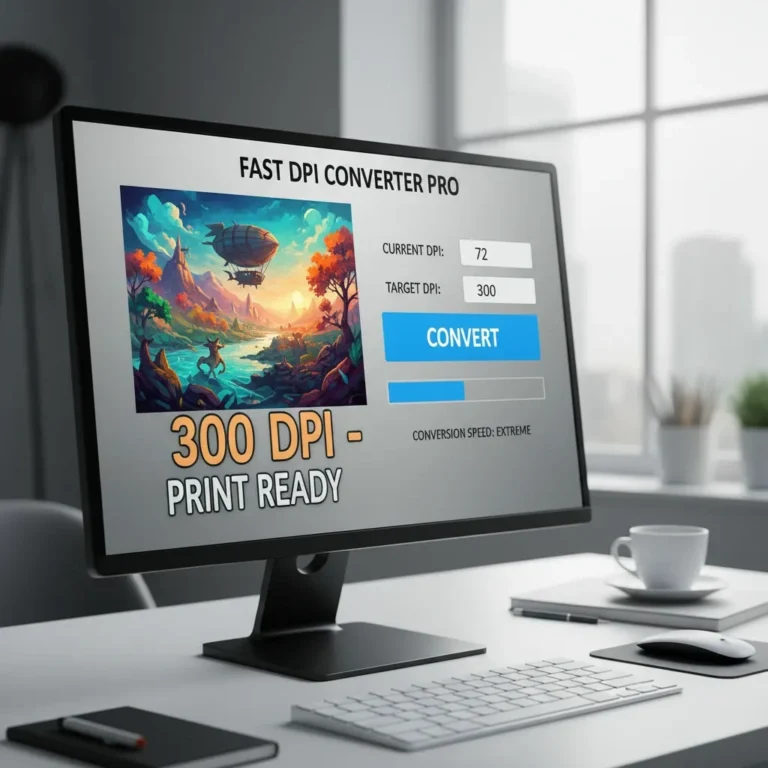
Have questions about preparing specific images for print? Use our DPI Converter its really fast.