You’ve been there, right?
You took a gorgeous photo. It’s crisp, clear, and looks amazing on your computer screen. You’re excited to get it printed—maybe it’s a family portrait, a flyer for your small business, or a special piece of art. You hit print, wait for the whirring to stop, and then…
Your heart sinks.
The print is blurry. It’s pixelated. It looks like it came from a 1990s flip phone. What in the world happened? You double-check the file. It’s still perfect on screen! So why did your printer betray you like this?
Friend, your printer is innocent. The culprit is a tiny, hidden setting that almost everyone overlooks. And once you understand it, you’ll never have a blurry print again.
The Secret Your Camera and Printer Share
It all comes down to two simple ideas: Pixels and Instructions.
Think of your digital photo as a mosaic made of millions of tiny, colored tiles. These are your pixels. The more tiles you have (e.g., 4000 x 3000 pixels), the more detail you can pack in. This is your Pixel Dimension—the raw material of your image.
Now, imagine you hand this mosaic to a printer and tell it how big to make it. This is where the instructions come in, and they’re delivered through a setting called DPI (Dots Per Inch).
- High DPI (e.g., 300): You’re telling the printer, “Squeeze 300 of those tiny pixels into every single inch of paper.” The result? Incredible detail and sharpness.
- Low DPI (e.g., 72): You’re saying, “Okay, only pack 72 pixels into each inch.” To fill the same-sized paper, the printer has to stretch and blur those pixels, creating a blocky, sad-looking mess.
Here’s the kicker: most images straight from a phone or the web are set to 72 DPI. That’s perfect for screens, but it’s a recipe for disaster for printers.
So, you can have a massive, high-pixel image that’s perfectly capable of being printed sharply, but because its DPI instruction is set to 72, the printer just does what it’s told and makes it blurry.
The “Aha!” Moment and the Simple Fix
The fix isn’t to make the image bigger. In fact, that often makes things worse by just creating artificial pixels.
The fix is to change the instructions.
You need to change the DPI from 72 to 300 without changing a single pixel in your beautiful photo. In technical terms, you need to change the DPI without resampling.
This is where the magic happens. Imagine a tool where you:
- Upload your blurry-print-bound photo.
- Type in “300” where it says DPI.
- Download the exact same image, but with new, printer-friendly instructions.
That’s it. No complex software, no confusing settings. You’ve just told your printer, “Hey, treat this with the respect it deserves,” and you’ve done it in seconds.
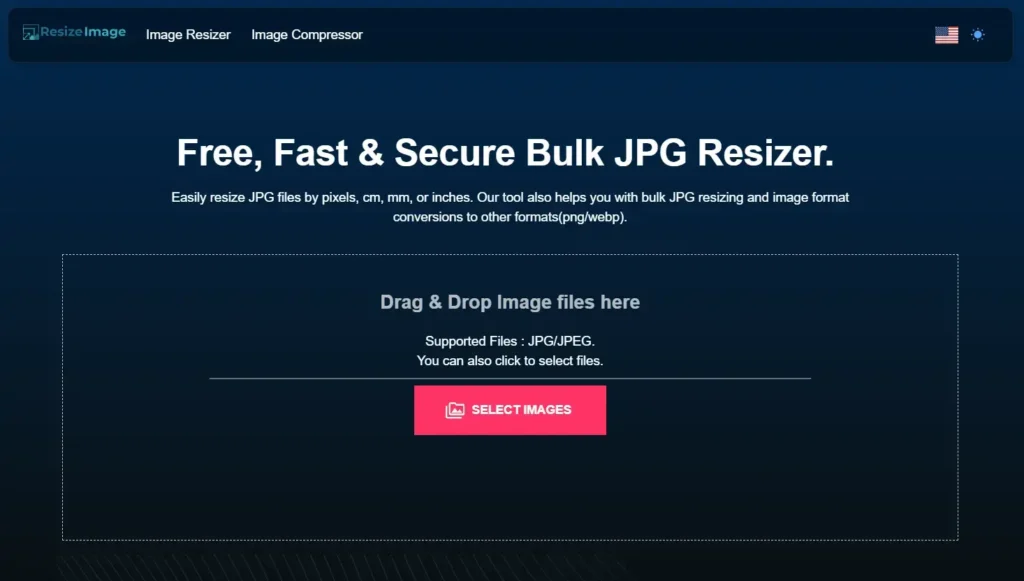
Click here to fix your blurry prints now. Just upload your image, change the DPI, and you’re done!
No More Printing Nightmares
The next time you’re preparing a photo for print, don’t just look at how it appears on screen. Remember to give it the right instructions. Change the DPI to 300, keep those pixels intact, and watch as your prints come out sharp, clear, and exactly as you envisioned.
Your memories and your marketing materials deserve to look their best. Now you know the secret to making it happen.