You take the perfect shot on your iphone. Your dog sneezes. Your kid waves. A friend jumps into a pool.
It’s a Live Photo—a tiny three-second movie wrapped inside what looks like a normal photo.
You text it to a friend with an Android. They see… a still image. No motion. No magic. Just a boring, static frame.
You email it to a coworker. Same problem.
You try to post it on Discord, Slack, or Twitter. Nothing moves.
The problem: Live Photos are stored as HEIC files with embedded motion data. Non-Apple devices and most social platforms don’t know what to do with them.
The solution: Extract that motion and turn it into a GIF—the one universal moving image format that works everywhere.
Here’s how to do it safely, quickly, and without installing weird apps.
Wait, What’s Actually Inside a Live Photo?
Technically speaking, a Live Photo is a hybrid:
- A still HEIC image (high quality)
- A sidecar MOV video file (the 3 seconds of motion)
- Metadata that links them together
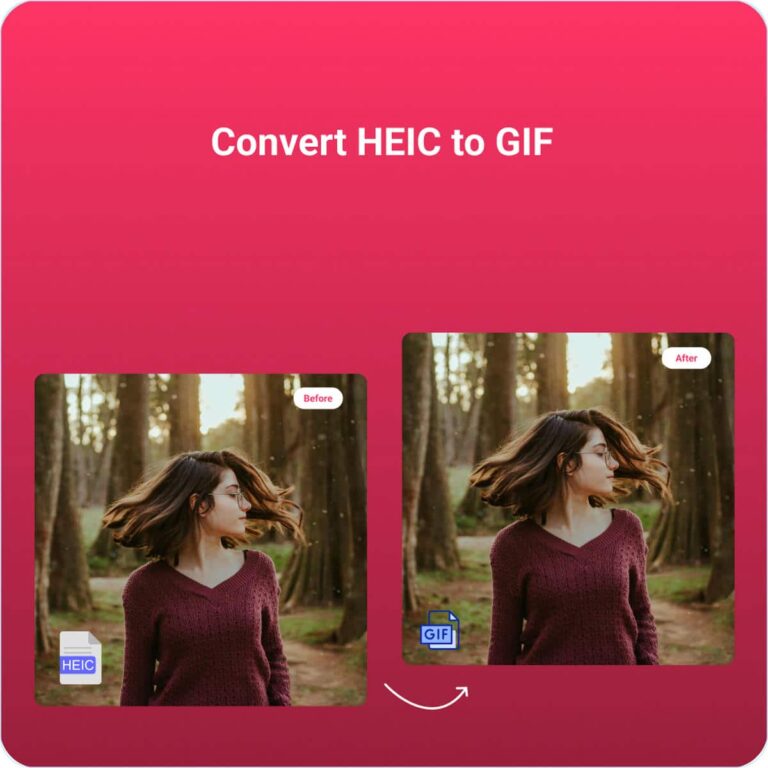
When you “convert a Live Photo to GIF,” you’re really extracting that MOV video and converting it into an animated loop.
Most online tools fail because they only see the still image. You need a tool that reads the full HEIC container.
The Social Media Use Case: Why GIFs Win?
| Platform | Supports Live Photo natively? | Supports GIF? |
|---|---|---|
| iMessage (Apple to Apple) | ✅ Yes | ✅ Yes |
| Text to Android | ❌ No | ✅ Yes |
| Discord | ❌ No | ✅ Yes |
| Slack | ❌ No | ✅ Yes |
| Twitter/X | ❌ No (converts to static) | ✅ Yes |
| Facebook Messenger | ❌ No | ✅ Yes |
| ❌ No | ✅ Yes (as attachment) | |
| ❌ No | ✅ Yes |
Conclusion: If you want anyone outside Apple’s walled garden to see your moving moment, GIF is the only universal answer.
Method 1 – Client-Side HEIC to GIF Converter (Easiest + Safest)
This is what I use for every Live Photo I want to share. It’s a client-side converter that processes everything in your browser—no uploads, no privacy risks, no app installs.
Recommended tool: Heic to Gif Converter
Why this is perfect for Live Photos?
- Extracts motion automatically – It reads the embedded video inside the HEIC file, not just the still image.
- Outputs GIF – Ready to drag into Discord, Slack, texts, or tweets.
- Batch processing – Convert 20 Live Photos into 20 GIFs in one go.
- Zero uploads – Your sneezing dog video never leaves your computer.
- Free + no signup – Because converting a memory shouldn’t cost money.
How to use it:
- Go to [your converter link]
- Drag your Live Photo HEIC files into the drop zone
- Select Output format: GIF
- Click Convert
- Download your animated GIFs
That’s it. Three seconds of motion, now sharable with literally anyone.
Privacy note: Because conversion happens locally in your browser, your Live Photos (including any faces or private moments) are never uploaded to any server. This matters more for video than still photos.
Method 2 – The “Shortcuts” Method (iPhone Only, No Computer)
If you’re still on your iPhone and don’t want to involve a computer:
- Open the Shortcuts app (pre-installed on iOS)
- Tap + → Add Action
- Search for “Convert Live Photo”
- Add action: Convert Live Photo to GIF
- Add action: Save to Photos or Share
- Run the shortcut on any Live Photo in your library
Pros: No computer needed.
Cons: One at a time (no batch). Quality can be low. No control over frame rate or loop count.
Method 3: FFmpeg (For Control Freaks)
If you want perfect control over frame rate, resolution, and loop count:
bash
ffmpeg -i input.mov -vf "fps=10,scale=480:-1:flags=lanczos" -loop 0 output.gif
But wait – FFmpeg can’t read HEIC directly. You’d need to:
- Extract the MOV from the HEIC (complex)
- Run the FFmpeg command
- Clean up the temp files
Verdict: Powerful, but overkill for 99% of people. Stick with Method 1 or 2.
Live Photo → GIF: Quality Expectations
| Source | GIF Result |
|---|---|
| iPhone 12 or newer (HEIC) | Good to great (3 seconds, smooth motion) |
| iPhone 8–11 | Decent (slightly lower resolution) |
| Older iPhone | Acceptable (but frame rate may drop) |
Reality check: GIF is an ancient format (1987!). It doesn’t support high frame rates or millions of colors. Your Live Photo GIF will look “vintage web” – but it will move, and that’s what matters.
For better quality with smaller file size, consider MP4 instead of GIF. But if universal compatibility is your goal, GIF still wins.
When NOT to Use a GIF?
GIFs are great for sharing, but terrible for archiving.
| Use GIF for | Use MP4 or original HEIC for |
|---|---|
| Texting a friend | Saving to your camera roll |
| Posting on Discord | Editing in video software |
| Slack reaction | Printing (yes, really) |
| Meme creation | Long-term storage |
If you want to keep the motion forever, save the original Live Photo HEIC + MOV. Use GIF only for sharing.
Frequently Asked Questions ?
Q: Will converting to GIF remove the still photo?
A: No. Your original Live Photo HEIC remains untouched. The GIF is an additional file.
Q: Can I control how many loops the GIF makes?
A: Most GIFs loop forever by default. Your converter may offer a “loop count” setting (1 = play once, 0 = infinite).
Q: My Live Photo converted to a static image, not a GIF. Why?
A: Some tools only read the still frame inside the HEIC. You need a tool that extracts the embedded video track. Your client-side converter does this automatically.
Q: Is there file size limit?
A: Your converter processes locally, so the limit is your computer’s RAM. 50–100 Live Photos is fine on any modern machine.
Final Verdict: The Best Way to Share Live Photos
| Your situation | Best method |
|---|---|
| Share with Android friends | Client-side HEIC to GIF (no uploads, batch ready) |
| Share on Discord/Slack | Same as above |
| Quick iPhone-only conversion | iOS Shortcuts app (one at a time) |
| Professional video editing | Extract MOV, then use FFmpeg |
| Privacy-sensitive content | Your client-side converter (never uploads) |
Real Talk: Apple Should Fix This
Apple has kept Live HEIC Photos exclusive to their ecosystem for years. Android users can’t view them. Windows users can’t view them. Social platforms ignore them.
Until Apple opens up the format (unlikely), GIF conversion comes in handy.
Our client-side converter bridges that gap without compromising privacy or requiring technical skills. Your privacy and security reamins top notch.