Every time you upload an image to the web, you make a choice. Compress it to load faster, or keep it pristine at the cost of speed. Get it right, and your pages fly. Get it wrong, and you're either serving blurry photos or bloated files that send visitors away.
This is where the lossy vs lossless debate lives. It's not about which is better — it's about knowing when each one serves your purpose.
What's the Difference, Really?
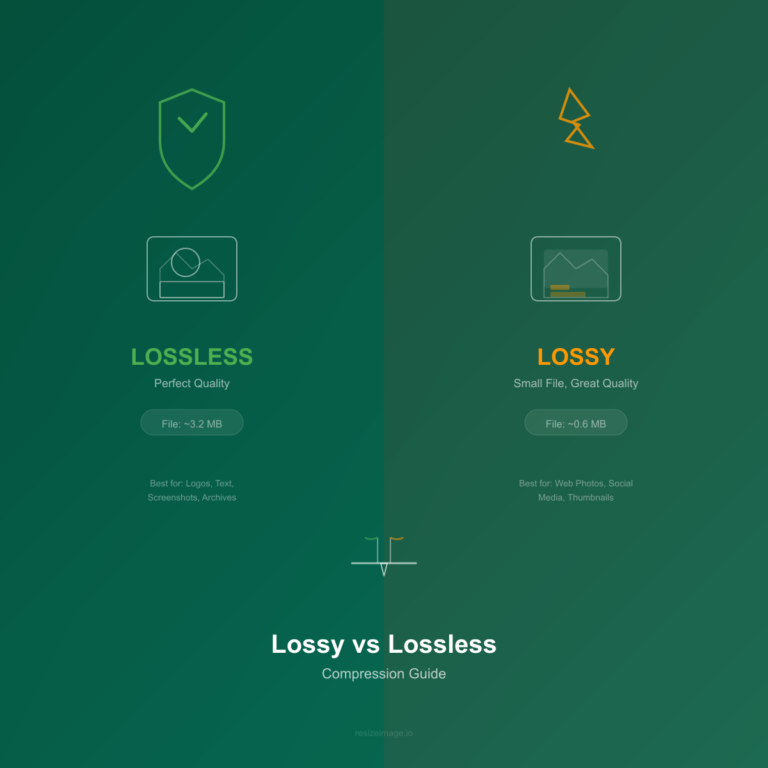
Lossy compression reduces file size by permanently discarding some image data. The image won't look identical to the original, but to the human eye, it often does. The trick is removing just enough data to save space without making the image look bad.
Think of it like summarizing a book. You get the plot, the characters, the key scenes. But you lose the descriptive paragraphs and the author's style. The story is intact. The texture of the prose is gone.
Lossless compression reduces file size without discarding any data. The decompressed image is pixel-identical to the original. It's like zipping a document — the file gets smaller, but when you unzip it, every word is exactly where it should be.
The catch? Lossless files are significantly larger than lossy ones at equivalent visual quality.
Side by Side: A Quick Comparison
| Lossy | Lossless | |
|---|---|---|
| Visual quality | Excellent (tunable) | Perfect (identical to original) |
| File size reduction | 50–90% | 10–30% |
| Best for | Web images, social media, thumbnails | Photography, archival, medical imaging |
| Reversible? | No | Yes |
| Common formats | JPEG, WebP (lossy), AVIF | PNG, WebP (lossless), GIF, TIFF |
When to Use Lossy Compression
Social media images
Instagram, Twitter, Facebook — all these platforms recompress your images anyway. Uploading a massive lossless PNG gains you nothing. Export as JPEG at quality 85 or WebP at quality 80. Your photos will look great and load instantly. Use the image compressor to find the right quality balance.
Product photos on ecommerce sites
Speed kills conversions. A 1-second delay in page load can reduce conversions by 7%. For product galleries where customers flip through 5–10 images, compression matters. Use lossy WebP at quality 85 — it looks identical to the original to almost everyone, and the file is 70% smaller than a JPEG.
Blog and article images
Nobody is zooming in to pixel-peep your blog header. Use lossy JPEG at quality 80 for photos, or lossy WebP for even better savings. If you're worried about quality, run a test: compress a batch and view them side by side on a real device. You'll be surprised how good lossy compression looks.
Thumbnails and avatars
These are small by nature. A lossy JPEG at quality 70 is more than enough for a 150×150 profile picture. At that size, the difference between lossy and lossless is invisible to the naked eye.
When to Use Lossless Compression
Logos and graphics with text
This is the most important rule: never use lossy compression on logos or images that contain text. Lossy compression introduces artifacts around sharp edges. Text becomes blurry, jagged, or surrounded by weird pixel noise. It looks unprofessional immediately.
Use lossless PNG or WebP (lossless mode) for anything with text, logos, icons, or line art.
Screenshots and UI mockups
Same logic as logos. Screenshots have sharp edges, small text, and UI elements. Lossy compression will blur tooltips, make buttons look fuzzy, and generally ruin the professional impression you're trying to create.
Lossless PNG is the standard here. The PNG compressor handles lossless compression efficiently, reducing file size without any quality loss.
Photography portfolios
If you're a photographer showing your work, your images are the product. Lossy compression artifacts — even subtle ones — are unacceptable. Use lossless formats. Most photography portfolios use JPEG at near-lossless quality (95+) or PNG for gallery images.
Medical or scientific images
When every pixel carries information, lossy compression isn't an option. Medical imaging, satellite photos, and scientific visualizations should always use lossless formats.
Images that will be edited later
If an image might be re-cropped, color-corrected, or edited in the future, keep a lossless master copy. Every time you save a lossy JPEG, it degrades further. After 3–4 rounds of edits, the quality is noticeably worse.
How to Choose the Right Compression in Practice
Here's a simple flowchart:
- Does the image contain text or sharp lines? → Use lossless (PNG or WebP lossless)
- Is it a photo for web use? → Use lossy (WebP at quality 80–85)
- Is speed more important than quality? → Use lossy JPEG at quality 60–70
- Will this image be edited later? → Keep a lossless original, use lossy for the web version
- Is this for archiving or printing? → Use lossless TIFF or PNG
The File Size Reality Check
Here's what happens when you take a 5 MB JPEG photo and apply different compression methods:
| Method | Result Size | % of Original |
|---|---|---|
| Original | 5.0 MB | 100% |
| WebP lossless | 3.2 MB | 64% |
| WebP lossy Q90 | 1.1 MB | 22% |
| WebP lossy Q80 | 0.6 MB | 12% |
| JPEG Q85 | 0.8 MB | 16% |
| JPEG Q60 | 0.4 MB | 8% |
The WebP lossy at Q80 is 88% smaller than the original and looks nearly identical on any normal display. That's the sweet spot for most web use. Use the KB reduction tool to target specific file sizes precisely.
How ResizeImage.io Handles Both Modes
ResizeImage.io gives you full control over compression mode and quality for every format:
- JPEG: Quality slider (1–100), lossy only
- PNG: Automatic lossless compression
- WebP: Toggle between lossy and lossless, plus quality slider
- AVIF: Lossy with quality slider
The WebP converter lets you switch between lossy and lossless modes when converting from other formats, so you can always pick the right compression type for your use case.
Just upload an image, choose your output format, set the quality level, and download. The tool shows you the estimated file size before you commit.
The Bottom Line
Lossy and lossless aren't enemies. They're tools for different jobs.
Use lossy for photographs on the web, social media images, and anything where load speed matters more than perfect fidelity. Use lossless for text-heavy images, logos, screenshots, and any image that might be edited later.
And when in doubt — use lossy WebP at quality 80. It's the best balance of size, quality, and browser support in 2026.