
We’ve all been there. You find the perfect image for your website header, upload it to your CMS, hit “publish,” and… it looks terrible. The logo is squished horizontally, your team photo looks like a funhouse mirror reflection, or half the subject’s head is cropped off.
The culprit is almost always a misunderstanding of aspect ratio.
If you are a blogger, marketer, or small business owner handling your own visuals, understanding aspect ratio is the difference between a professional-looking website and a digital eyesore. Here is everything you need to know about what aspect ratio is, and why you absolutely must pay attention to it when resizing images.
What is Aspect Ratio?
Simply put, the aspect ratio of an image is the proportional relationship between its width and height.
It is often written as two numbers separated by a colon (e.g., 16:9). The first number represents the width, and the second represents the height. Crucially, aspect ratio does not refer to the actual size of the image (like 1920px x 1080px), but rather the shape.
Think of it like a rectangle. You can have a tiny thumbnail and a massive billboard; if they are both cut from the same shape, they have the same aspect ratio.
Common Aspect Ratios You See Every Day
- 16:9 (Widescreen): This is the standard for HDTV, most laptop screens, and YouTube videos. It is a landscape (horizontal) orientation.
- 4:3 (Standard/Fullscreen): This was the standard for old tube televisions and early computer monitors. It’s squarer than 16:9.
- 3:2 (Photographic): This is the classic 35mm film ratio. Many DSLR cameras shoot in this format.
- 1:1 (Square): The undisputed king of Instagram feeds and profile pictures. It is perfectly balanced.
- 9:16 (Portrait): The exact opposite of widescreen. This is the orientation of your smartphone screen and the format used for TikTok, Instagram Reels, and YouTube Shorts.
- 2:3 (Portrait Photographic): The vertical equivalent of 3:2; a common size for professional portrait photography.
Why Aspect Ratio Matters During Resizing?
This is where most people get into trouble. When you have an image that doesn’t fit a specific space (like a website banner), your instinct might be to just grab the corner of the image and drag it until it fits. However, your software (be it Photoshop, Canva, or even Microsoft Word) needs to make that image fit the container. It usually does so in one of two ways: distortion or cropping.
1. The Problem of Distortion (Squishing and Stretching)
This is the most common mistake. Imagine you have a perfect square image (1:1) of a logo. You need to place it in a horizontal banner space that is a wide rectangle (16:9). If you manually stretch the width to fill the space without locking the proportions, your software squishes the height to fit the new shape.
The result: A logo that looks like it’s been put through a vise. Text looks bold and fat, circles become ovals, and faces look wide. This screams “amateur” and damages brand credibility. When resizing, if you change the width, you must change the height proportionally, or vice versa. This is called “constraining proportions.”
2. The Problem of Cropping (The “Fill” vs. “Fit” Dilemma)
To avoid distortion, you have two ethical choices when placing an image into a different-shaped container:
- Fit (Letterboxing): You resize the entire image so that it fits inside the container. This ensures the whole image is visible, but it leaves empty space (bars) on the sides or top/bottom. This is great for keeping all your visual information intact, but it can look awkward on a website banner.
- Fill (Cropping): You resize the image so that it fills the entire container. This looks seamless, but it means parts of the image will be cut off.
Understanding aspect ratio helps you predict what will be cut off. If you are taking a wide group photo (3:2) and trying to make it fit a mobile phone screen story (9:16), you are going to have to crop the sides heavily. You might accidentally cut your colleagues out of the photo if you aren’t careful.
3. The Problem of Print vs. Web
Aspect ratio is also vital when moving between digital and physical media.
- Digital: Screens use pixels. You can usually get away with slightly odd aspect ratios because the screen light is forgiving. Simply resize image pixels for digital usage.
- Print: Print is rigid. If you design a flyer at 4:3 but order a print frame that is 16:9, your image will either be stretched or have ugly white borders. Worse, if you try to stretch a low-resolution image to a new aspect ratio for print, it becomes pixelated. Do ensure dpi is 300 for printing images
How to Handle Resizing Like a Pro?
So, how do you avoid these pitfalls? It’s simpler than you think.
1. Always Lock the Aspect Ratio
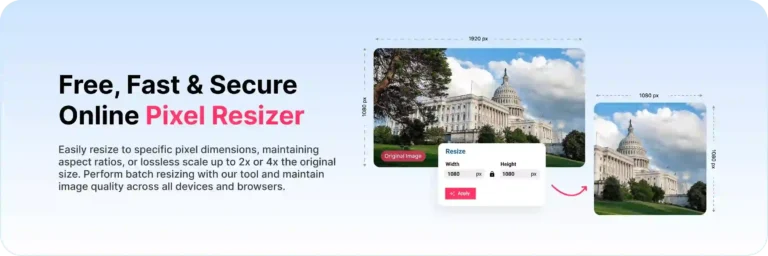
Almost every image editing tool has a chain link icon or a “Constrain proportions” checkbox. When resizing, make sure this is locked. This ensures that when you change the width, the height adjusts automatically to maintain the original shape.
2. Plan for Multiple Platforms
If you know you are going to need a square version of an image for Instagram and a landscape version for your website banner, don’t try to force one image to do both jobs perfectly.
- Start with the largest, highest-quality image you have (usually from a camera or designer).
- Create duplicates.
- Crop the first duplicate for the banner (e.g., 16:9) focusing on the most important visual elements in the center or rule-of-thirds points.
- Crop the second duplicate as a square (1:1).
3. Use Smart Cropping Tools
Modern tools like Canva and Adobe Lightroom have “AI-powered” cropping tools. These can help you reframe an image for a different aspect ratio by intelligently keeping the subject in frame. However, always double-check the AI’s work to ensure it didn’t crop out something vital.
The Takeaway
Aspect ratio isn’t just a technical specification for photographers and graphic designers; it is the fundamental shape of your visual story.
When you resize an image without regard for its aspect ratio, you risk distorting your brand or cropping out key context. By taking two extra seconds to lock those proportions and choosing whether to “fit” or “fill” your space, you ensure that your visuals remain sharp, professional, and effective—no matter what screen they are viewed on.