If you own an iPhone, your photos are probably sitting in HEIC format right now.
And that’s causing you problems you might not even realize.
HEIC (High Efficiency Image Container) has been Apple’s default photo format since iOS 11. It’s great for saving space on your phone — HEIC files are roughly half the size of JPEGs at the same quality. But the moment you try to upload those photos to a website, email them to someone, or use them in editing software, you hit a wall.
Most platforms still don’t support HEIC. Facebook, Twitter, most CMS platforms, and countless web tools will either reject HEIC files or silently fail to display them.
Here’s everything you need to know about HEIC in 2026 and exactly how to convert them to something usable.
Why Apple Uses HEIC (And Why It Works On Your Phone)
HEIC is based on the HEIF (High Efficiency Image File Format) standard. Apple adopted it because:
– 50% smaller files than JPEG at the same quality
– Supports bursts and live photos in a single container
– 16-bit color depth vs JPEG’s 8-bit (more color information)
– Lossless and lossy in the same file structure
Apple’s ecosystem handles it seamlessly. Your iPhone, iPad, and Mac all open HEIC without a second thought. iCloud syncs it. AirDrop transfers it. The problems only start when you leave Apple’s walled garden.
The 2026 Reality: HEIC Support Has Improved, But There Are Still Gaps
The pattern is clear: anything Apple-ecosystem works. Anything web-based often doesn’t.
When You MUST Convert HEIC to JPG
You’ll need to convert in these situations:
Uploading to websites. Most site builders, e-commerce platforms, and social media sites don’t accept HEIC. Uploading a product photo in HEIC to Shopify? It’ll silently fail or display as a broken image.
Emailing photos. Gmail and Outlook don’t render HEIC attachments inline. Recipients see a blank square or need to download and open separately.
Using in Microsoft Office. PowerPoint, Word, and Publisher don’t open HEIC without additional codecs.
Sending to non-Apple users. If you share photos with Android or Windows users, they can’t open HEIC files without installing extra software.
Web publishing. If you’re adding images to a blog, website, or CMS, always convert to JPEG or WebP first.
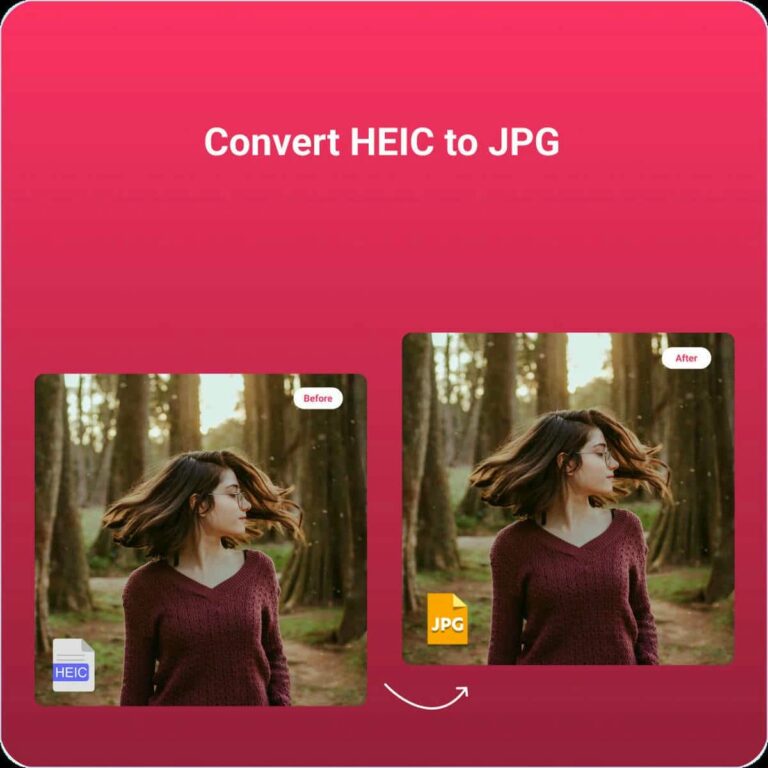
How to Convert HEIC to JPG (3 Free Methods in 2026)
Method 1: Browser-Based Converter (Easiest, No Software)
Use a free online converter like resizeimage.io’s HEIC converter. Here’s why this is the best option for most people:
1. Go to the converter page
2. Drag and drop your HEIC files (batch processing supported)
3. Choose JPG as the output format (or WebP, PNG, TIFF)
4. Adjust quality if needed
5. Download
The key advantage: All processing happens in your browser. Your photos never upload to any server. No privacy concerns, no 5MB file size limits, no signup.
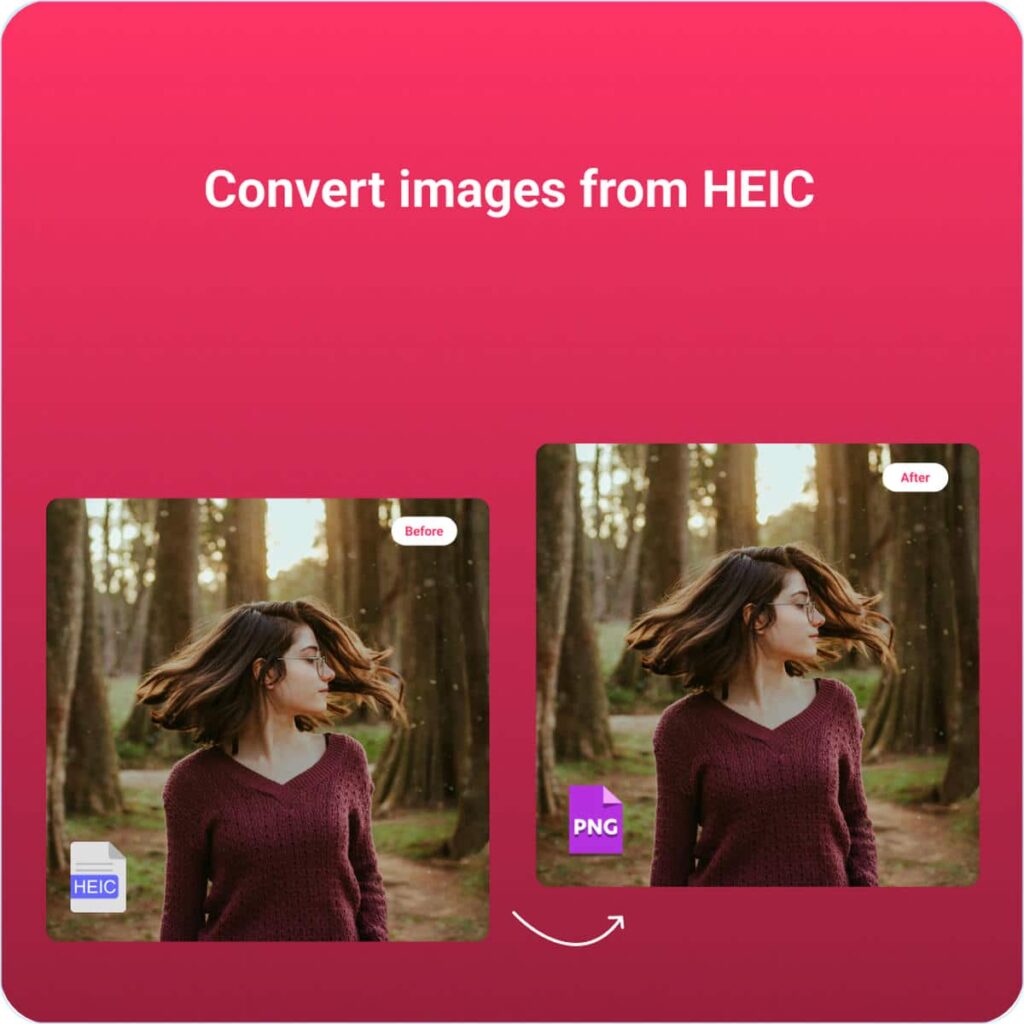
You can also convert directly between formats: HEIC to JPG, HEIC to PNG, or HEIC to WebP.
Method 2: Built-in macOS Preview
If you’re on a Mac, you don’t need any third-party tools:
1. Open the HEIC file in Preview
2. File > Export
3. Choose JPEG as the format
4. Adjust quality slider
5. Save
For batch conversion, select multiple HEIC files in Finder, open them all in Preview, and use the same Export flow — Preview will convert all of them.
Method 3: Command Line (For Power Users / Batch Processing)
If you have a folder full of HEIC photos and need them converted efficiently:
“bash
Using ImageMagick
magick mogrify -format jpg *.heic
Using sips (built into macOS)
for f in *.heic; do sips -s format jpeg "$f" --out "${f%.heic}.jpg"; done
“
This is the fastest method for converting 100+ photos at once.
What About Quality Loss?
HEIC to JPG conversion involves decompressing the HEIC data and recompressing as JPEG. If you use quality settings above 80%, the quality loss is visually imperceptible.
For archiving purposes, keep the original HEIC files. Convert copies only when you need JPEGs for specific use cases.
Pro Tip: Change Your iPhone’s Camera Format
If you frequently need JPEGs, consider changing your iPhone’s camera settings:
Settings > Camera > Formats > Most Compatible
This makes your iPhone shoot in JPEG instead of HEIC. The files will be larger, but you’ll eliminate the conversion step entirely.
Downside: You lose the 50% space savings, and Live Photos won’t be captured the same way.
FAQ: HEIC Conversion
Q: Does converting HEIC to JPG reduce image quality?
A: Only if you use low quality settings. At 90% quality or above, the difference is negligible for most uses.
Q: Can I convert HEIC to WebP?
A: Yes. WebP offers even better compression than JPEG. Convert from HEIC to WebP for web publishing.
Q: Is HEIC better than JPEG?
A: For storage, yes — HEIC is about 50% smaller. For compatibility, no — JPEG is universally supported.
Q: Why can’t my Windows PC open HEIC files?
A: Windows needs the HEIF Image Extensions from the Microsoft Store. It’s free but requires manual installation.
Q: Can I batch convert multiple HEIC files?
A: Yes. Browser-based tools like resizeimage.io support batch processing unlimited files.
The Bottom Line
HEIC is great for saving space on your iPhone. But for anything that leaves Apple’s ecosystem, you need JPG (or WebP). Converting is fast, free, and you can do it entirely in your browser with no uploads.
Bookmark a free HEIC converter so you’re not scrambling next time a website rejects your photo.